.png?width=100&height=35&name=Kiwa_2024_RGB%20(1).png)
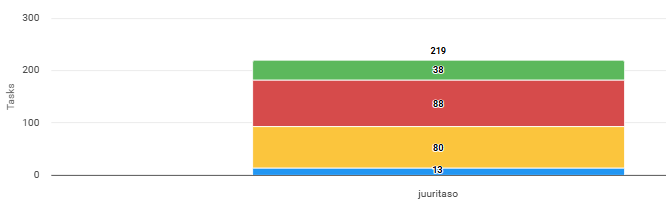
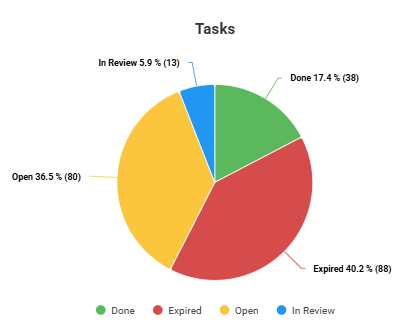
The Tasks tab provides an overview of the organisation’s task status and allows you to review the task situations of selected assets. The tab contains two charts that make this possible. The charts are colour‑coded based on task statuses. The statuses are represented in the same way as in the Tasks tab elsewhere in the system:
- Green – the task is closed.
- Yellow – the task is open, and the deadline has not yet passed.
- Blue – the task is in the inspection phase.
- Red – the task is open, and the deadline has passed.
Below is an explanation of the charts on the tab.
Actions bar chart
The first Tasks chart displays the tasks of the selected assets as a bar chart, grouped by asset. The total number of tasks for each asset is shown above its bar, and each segment of the bar indicates the number of tasks in a particular status for that asset.
Actions pie chart
The second Tasks chart displays the tasks that match the selected filters as a pie chart, providing a high‑level overview of the distribution of task statuses.
Printing and Saving Charts
In the Analytics view, charts can be accessed via the three-line icon in the top-right corner of each chart.
From the dropdown menu, you can open the chart in a new window or save it in your preferred file format.