.png?width=100&height=35&name=Kiwa_2024_RGB%20(1).png)
Reviewing Accident Frequency on the Frequency Tab
To obtain the accident frequency rate, you must select in the template filter the templates you have used for reporting accidents. If desired, you can also include, for example, safety observations in the figures and compare how the number of safety observations relates to the number of accidents.
The Frequency tab includes the following charts:
- Number of recorded accidents over time
- Accident frequency per one million working hours
- Ability to review LTIF and RTIF frequencies
- Number of accidents by category
Below is a more detailed description of the tab's contents.
Count
The first chart on the tab shows observations generated from the selected template(s) over time. Time filters can be used to adjust the review period and granularity. When several templates are selected in the template filter, each template appears in the chart in a different color.
Frequency per Million Working Hours
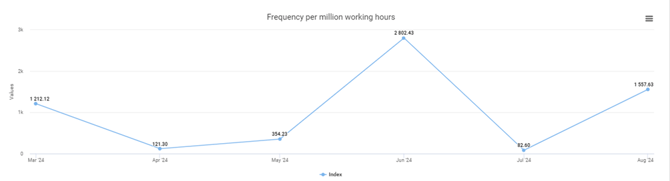
The next chart shows the observations from the selected template(s) per one million working hours, based on the working hours recorded in Impact. With the different filters, you can generate, for example, accident frequency rates for different departments or the ratios of other templates’ responses per million working hours.
Reviewing Different Frequency Types
If you want to break down different frequency types—such as LTIF and RTIF—you must take the following into account when building the template and reviewing the analytics:
- Template responses, such as accidents and lost-time accidents, can be filtered in analytics using appropriate filters. When creating a template, it is useful to add a simple component to support categorization, such as a selection button for “Lost-time accident.”
- Use Filter values - feature to make correct filtering
- Working hours can be recorded in Impact under different cost centers and employee groups (e.g., company employees in production, office staff, contractors). These allow you to filter the chart to display accident frequencies for different departments or employee categories.
You can read more about accident frequency and hour reporting in their respective guides:
Amount by Category
The bottom chart on the tab shows the values of submitted documents from the selected template(s). For example, the chart can be used to break down the number of safety observation reports by observation type or accidents by accident type over time. To obtain the desired values over time, the template must include the components needed for the intended analysis.
For example, to review different accident types, the template should include a dropdown listing possible accident types. Then, when reviewing accidents on the Frequency tab, the chart will display each accident type observed in the submitted documents as separate bars.
Printing/Saving Charts
You can export charts from the analytics view using the three lines in the top-right corner of each chart. From the dropdown menu that opens, you can view the chart in a new window or save it in your preferred format.