.png?width=100&height=35&name=Kiwa_2024_RGB%20(1).png)
Settings
From this page you can edit some basic settings for your account. Each change should always saved via the Update button. The settings on this tab can only be edited by the account owner.
Your organisation name
This field displays the name of the account. The name is required, so this field cannot be left blank.
Organisation default language
This field shows the default language of your account. Notification emails for new users and the Impact dashboard will default be in this language. Language can be changed by selecting the desired language from the drop-down menu. Changing the language in this field will only change the default language for new users after the change.
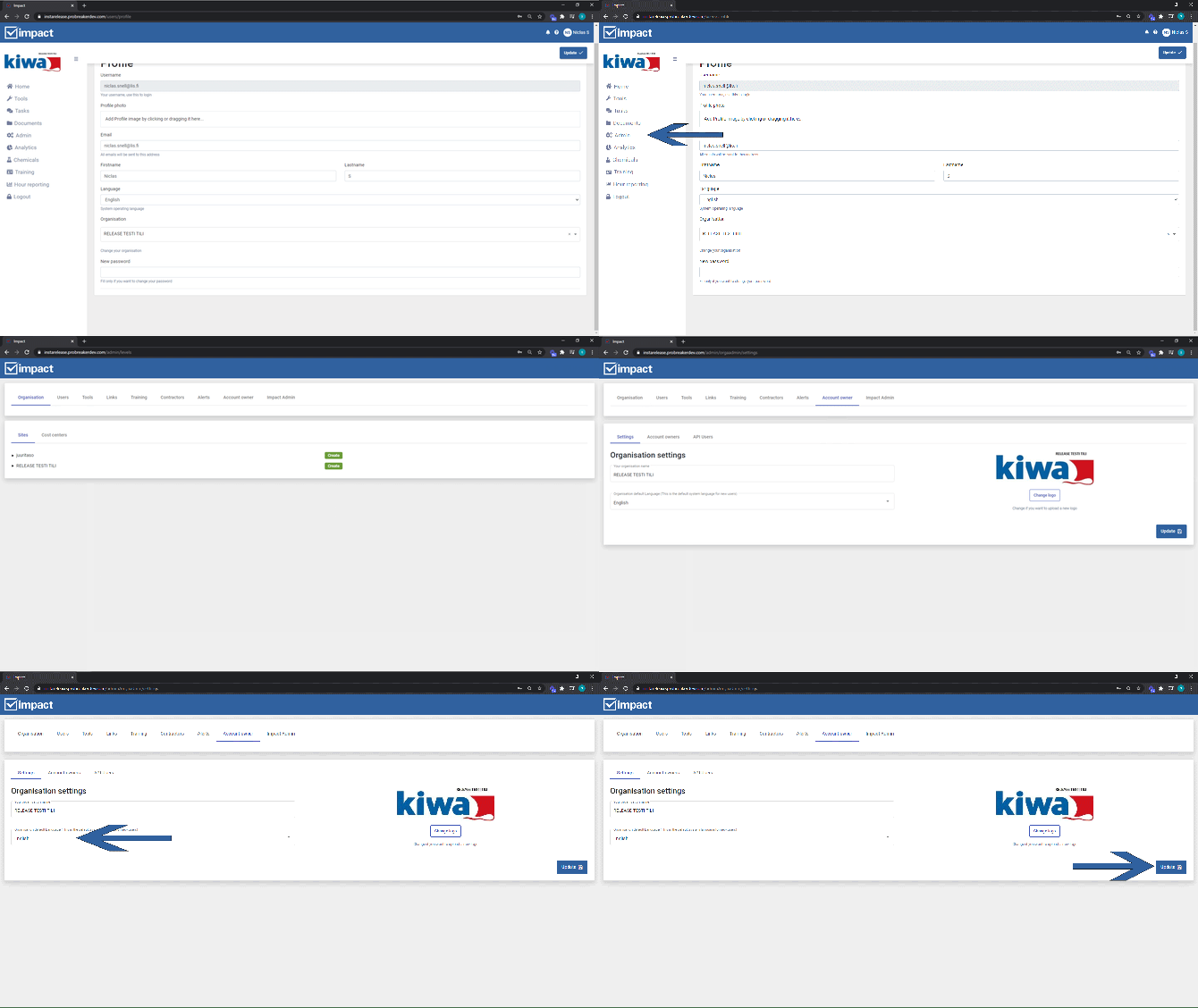
Organisation default date format
Here you can select the default date format for the organisation. This format will be automatically applied to newly added users. You can choose one of the following formats:
1. DD-MM-YYYY
2. MM-DD-YYYY
3. YYYY-MM-DD
Note! All users can also change their own date format in their profile settings if they wish.
New user welcome message
Here you can choose whether a welcome message is sent to new users, asking them to set a password. The message can be turned off if users are imported via an integration and log in using SSO, in which case no password is required.
Note! If this welcome message is turned off, adding users manually (for example, contractors) will not be possible. Users will not receive a password setup message and therefore will not be able to log in to Impact.
Change logo
The logo for the account is displayed here. The same logo will be displayed on the left at the top of the page navigation. The image can be changed via the Change logo button.
Account owners
This tab lists all account holders. A new account owner can be added using the new account owner button.
1. Click on the New Account Owner button.
2. Click on the Select User box to open the drop-down menu on the right. Select the desired user from the drop-down.
3. Finally, click the Add button and the new account owner will appear in the list on the left.
The account owner can be removed from the listing by clicking on the trash can icon after the user's name.
Account owners should be updated at least when there is a staff change. If a user is left on the account owner list, it allows the user to log in to the account even if other access rights have been removed.
API Users
If you have an integration with Impact, the details of that integration are displayed on this page.