.png?width=100&height=35&name=Kiwa_2024_RGB%20(1).png)
The tab requires the use of a location component in the tools so that data can be displayed on the map. The map will show all tasks that match the selected filters, color‑coded according to their status:
- Green – the task is closed
- Yellow – the task is open and the deadline has not yet passed
-
Blue – The task is in the review phase
- Red – the task is open and the deadline has passed
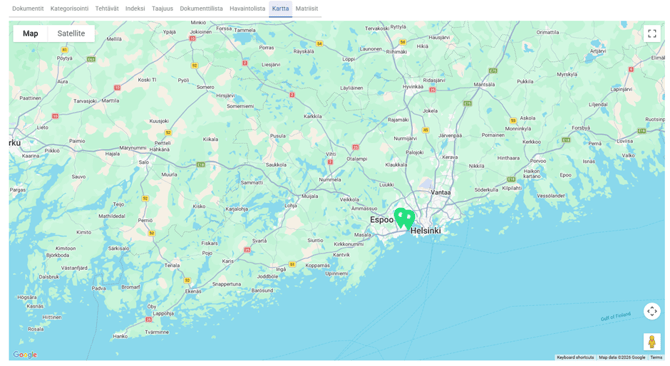
Clicking a marker on the map opens the task view for that specific task, where you can review it in detail and process it as needed. After closing the task view, you will return to the map.
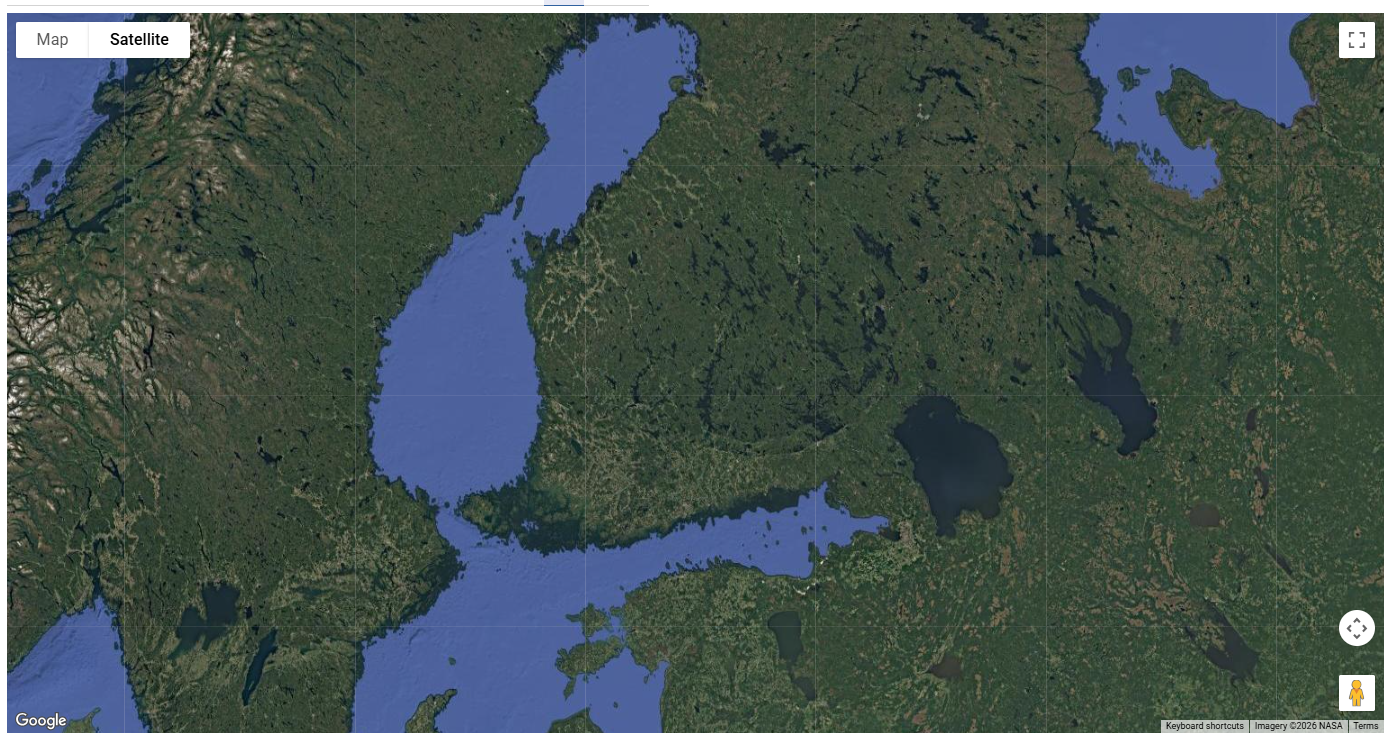
You may use the map on map or satellite view.
You can find more information about task handling in the separate task management guide.