.png?width=100&height=35&name=Kiwa_2024_RGB%20(1).png)
The Matrices tab enables a more visual review and monitoring of the company’s risks and risk levels. To make this possible, the desired tools must include a matrix component so that the data can be displayed in the Matrices tab. More detailed information about the matrix component can be found in its separate guide.
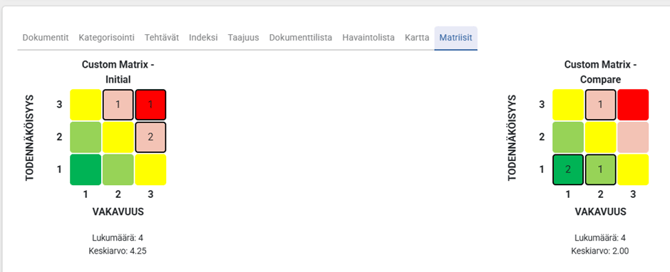
On the Matrices tab, you can review, for example:
- Overall monitoring of risks at different levels: company level, unit level, department level, task level, etc.
- Monitoring the total number of risks and the average risk score
- Monitoring the total number of residual risks and the average residual risk score
- Drilling deeper into specific risks through the matrix chart
Reviewing Matrices
As with the other tabs, you must select the desired level and template(s) on the Matrices tab to review the risks. After making the selections, the tab displays the matrices used in the selected template(s). Each template’s matrices appear as separate matrices stacked vertically, containing all risks recorded in that template.
Below each matrix, you can see the number of risks included in that matrix and their average risk level. This allows an easier comparison between initial and residual risk levels.
You can examine the risks in more detail by clicking the desired risk level within a matrix. Impact will then open a matrix showing only the risks from that selected level, along with a list of related observations below it. In this view, you can review the selected risk(s) in more depth.
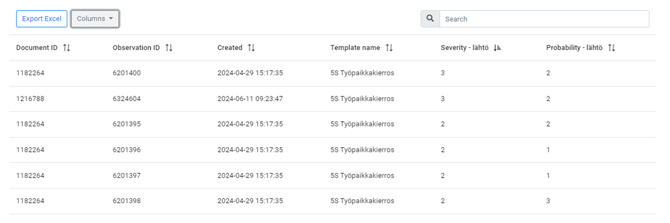
You can further examine the observations related to the selected risk(s) by using the columns in the list. By enabling the relevant columns, you can view key details and easily compare the observations. To view the content of an individual observation, click it—Impact will open the task view for that specific observation, showing its details and any corrective actions related to the observation and the associated risk.
After reviewing a single observation in the task view, you can return by clicking Close (x). To go back to the full matrix view containing all risks, click the Back button above the matrices.
Risk Observation List
Below the matrices, the tab always displays a list of observations from the selected template(s). The list works similarly to the Observation List on the Observation List tab.
You can search for observations using the search bar, which scans all column data. The search is a free-text search.
You can also sort the list by clicking a column header—Impact will sort the list by that column’s values. Clicking the same header again reverses the order.
You can customize the columns displayed in the list through the Columns menu:
- Click the Columns button to open the dropdown menu.
- Select the fields you want to display by clicking them in the list.
- Selected fields appear in bold.
- Close the menu by clicking the Columns button again.
Exporting the List
The list on the Matrices tab can be exported to Excel in the same way as the lists on the Observation List and Document List tabs.
Follow these steps:
- Apply your desired filters; in the observation list view, also select the columns you want.
- Click Create Excel.
- Open the Excel file you just downloaded.
Notes for Excel Export
- If the image column is selected in the observation list, the export includes the image metadata but not the actual images.