.png?width=100&height=35&name=Kiwa_2024_RGB%20(1).png)
Example use case: I want to see who has the most open tasks across the entire organization
- Select Root level in the level filter
- Select the desired time period and reporting templates
- Click Update so that the table fetches the data correctly
-
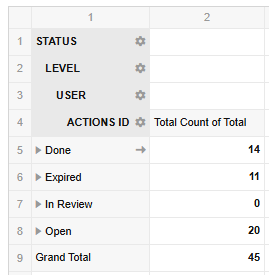
At first, you will see a list showing tasks grouped by their status.
-
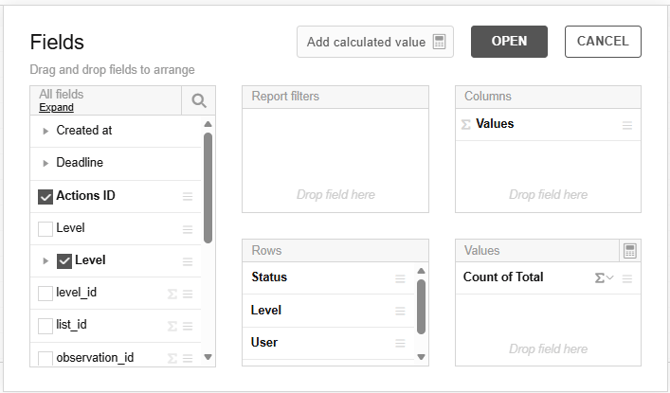
Click the Fields button to modify the table. In this view, you can drag fields into rows or columns. Removing a field from use is done by dragging it outside the area.
-
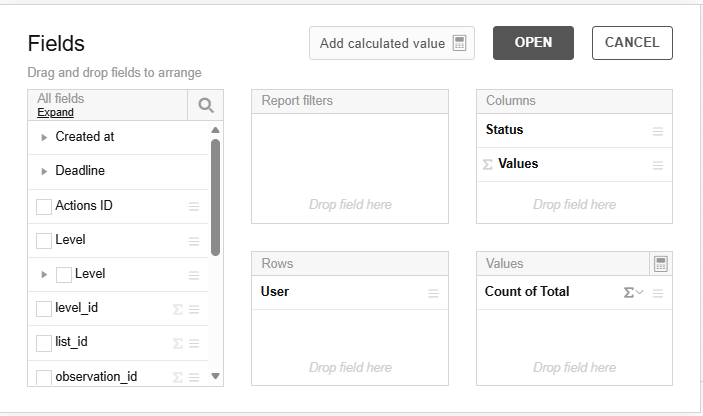
Drag the Status field into the Columns area and remove the level field from the Rows area.
-
Click Open, and you will see the tasks broken down by user and status.
-
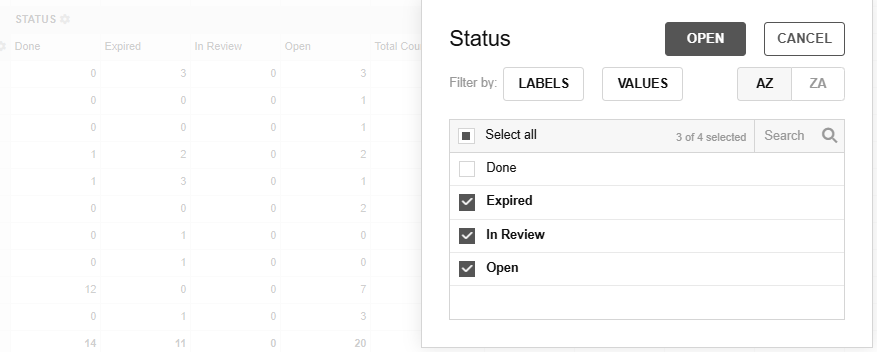
You can now click the gear icon next to Status and filter out the Done value so that only open tasks are shown. Click Open after making your selections.
-
You can also sort the rows using the arrow next to the column header.
-
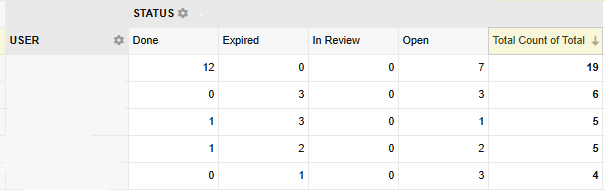
Now you can see all open tasks grouped by user, ordered from the highest number to the lowest.
-
Remember to save the filter for future use!