.png?width=100&height=35&name=Kiwa_2024_RGB%20(1).png)
This tab helps you view tool-specific answers in a table format. You can, for example:
- Review the number of answers given in the table in relation to time
- Sum numeric fields using the Numeric Value field
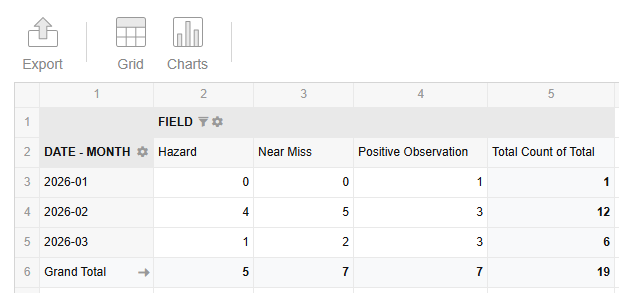
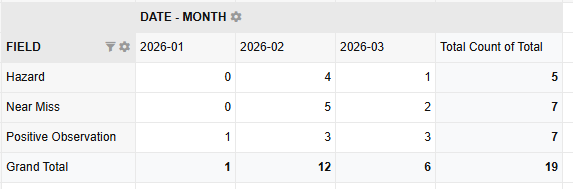
Example use case: I want to see created observations categorized by creation time.
- Select the level, template, and desired time range.
- Click Update to fetch the data into the table.
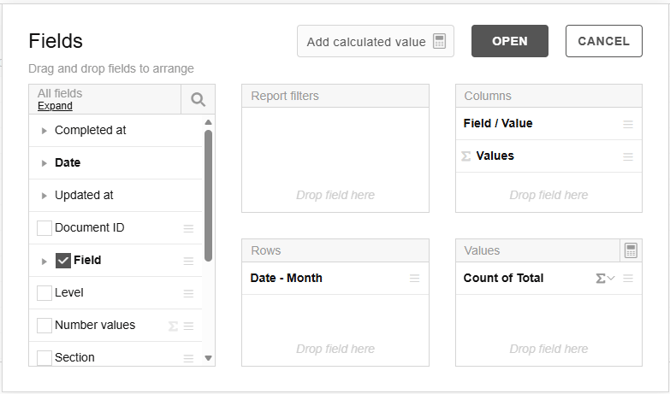
- From the Field , select Field/Value and drag the level and template fields out of the Rows box, then click Open.
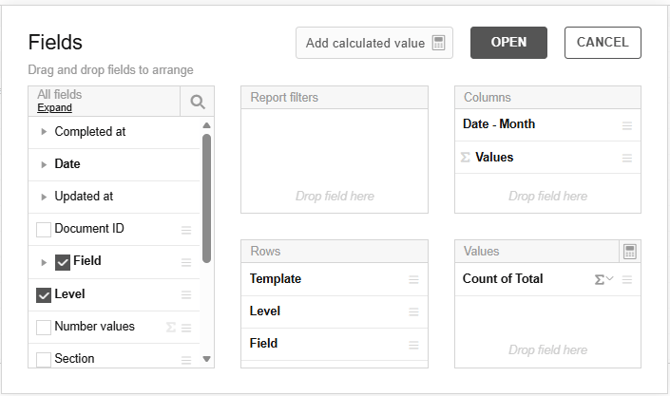
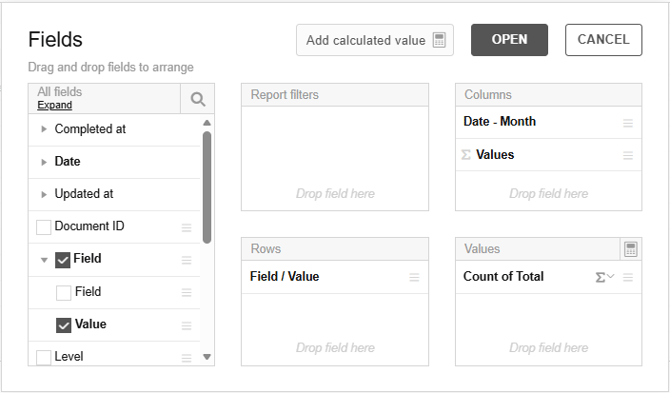
- You will get a table of all answers over time.
-
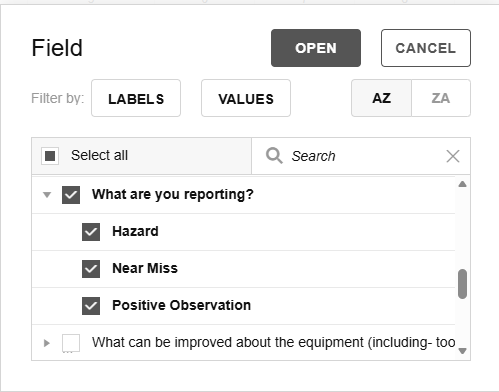
Click the gear icon in a Field cell. You can choose the question and which answer values you want to bring into the table. Now select all values of your categorizing question. Click Open.
-
The table is now ready.
-
Remember to save the view for future use.
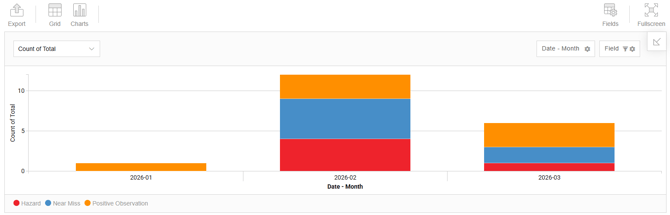
Tip! From the Fields button, you can also switch the positions of the Date and Field/Value fields. A row-based date works better in some charts. You can switch between grid and chart views using the buttons above the table. In this example Stacked columns chart was used.