.png?width=100&height=35&name=Kiwa_2024_RGB%20(1).png)
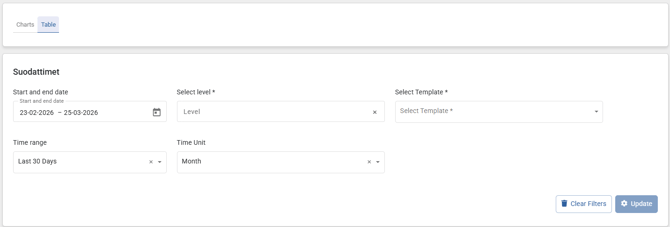
Only visible filters affect the table views: level, templates, time unit, and time range. Other filters can be added to enhance the table’s versatile filtering capabilities.
If you change filters, the data must be refreshed using the Update button.
Tables also display zero values, which means tables can be used, for example, for the following purposes:
- Have all scheduled inspection rounds been completed
- Number of reports per employee
- Number of open tasks per person
Saving filters
Filters on the table side are tab-specific.
When you have created the desired filters and field formatting, you can save them. You can then give the filter a name, and it will appear in the Select saved view list.
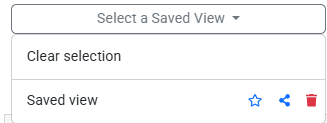
After saving, you can:
- Mark the filter as a favorite using the star icon
- Share it with other users using the share button
- Delete it
Select saved view – Open or share saved filters
Save – Save a new filter
Save as – Save and name a new filter
Other user interface buttons
Export – Download the data as a printout, HTML, CSV, Excel, image, or PDF
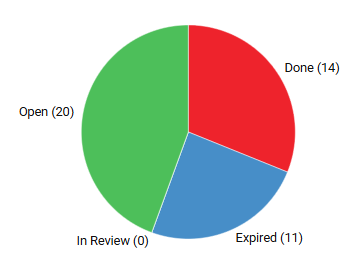
Grid – Charts – Choose whether to view the data as a table or as a selected chart. You can switch between views. Below is an example of switching between table and chart views.
Note: If you want to display a chart in relation to time, the time field must be placed in rows.
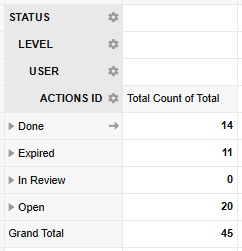
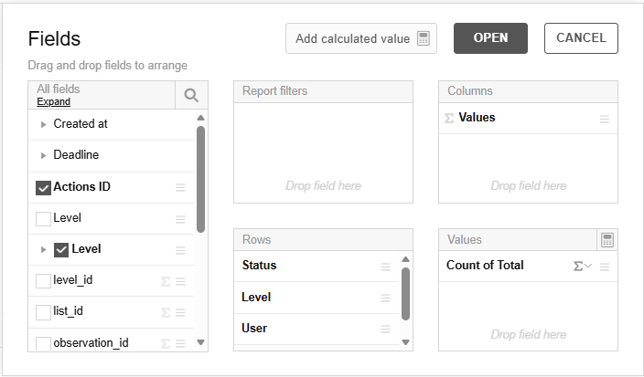
In the Fields selection, you can choose which data is placed in rows and columns. Fields can be dragged from the left into different areas, or dragged out of an area if they are not needed.
- Report filters: Fields placed here can be used to filter the data
- Rows: What data is displayed in rows
- Columns: What data is displayed in columns
- Values: What value is summarized
Full screen – You can also view the table in full-screen mode
Tip! If you want to export only a portion of the table, for example to Excel, you can select the desired area and copy it using CTRL + C, then paste it into Excel using CTRL + V.