.png?width=100&height=35&name=Kiwa_2024_RGB%20(1).png)
All tabs on the Charts side of Analytics share the same filter menu. Separate instructions provide information about the contents of each tab:
- Documents
- Categorization tab
- Tasks tab
- Index tab
- Observation and document listing
- Maps tab
- Risk assessment analytics
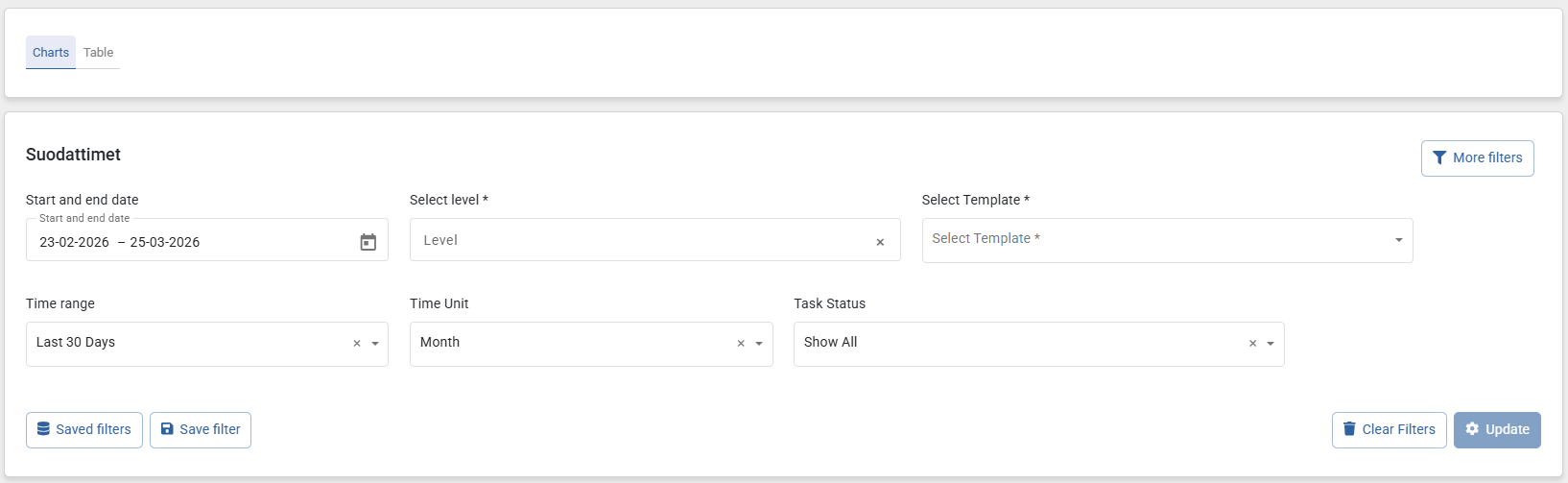
After making any new selections, remember to click Update in the bottom right corner to display the results and refresh the contents of the other filters
Date range
Using the filter, you can define the period during which the entered data will be displayed in analytics. In addition to selecting dates, you can use the drop-down menu, which includes predefined options such as the last 30 days or the previous year.
Time unit
Using the filter, you can define the time unit over which the charts are displayed. By default, the filter is set to month, as is also the case in the Date range filter. Usually, one or both of these filters need to be updated in order for data to be displayed in the chart
Select level
This filter allows you to choose the level or levels for which you want to view data from completed observations and filled-in tools. This selection is always required first, and you must click Update after choosing.
Select template
This filter allows you to display only data generated from specific tool(s). The selected target affects the list of available templates. The dropdown menu shows only those tools that have been filled in for the selected target(s)
More filters
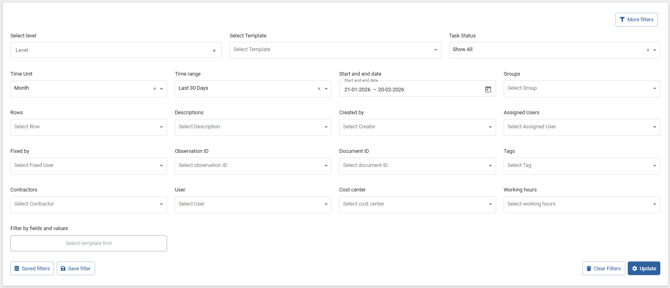
Below is an overview of all Impact filters in the order shown in the image. More filters can be displayed by clicking More filters in the top right corner.
Groups
This filter allows you to select groups to review from checklists and updatable checklists. You can filter data belonging to a specific inspection group
Rows
This filter allows you to select specific checklist items (rows) under the groups. The Groups filter affects the dropdown list of this filter. The menu displays the rows belonging to the group selected in the Groups filter.
Descriptions
This filter allows you to filter the content of the Description field in forms and checklists.
Created by
This filter allows you to filter data based on the user who created it. The tool must have been filled in while logged in for the creator to be selectable.
Assigned users
This filter allows you to filter task data based on the assigned user. It displays data for tasks assigned to the selected user.
Fixed by
This filter allows you to filter task data based on the users who have marked tasks as completed. The dropdown shows users who have completed tasks.
Observation ID
This filter allows you to filter data based on observations generated from completed forms and checklists. The dropdown lists the IDs of observations created from the selected templates.
Document ID
This filter allows you to filter data based on a single completed document. The dropdown lists the document IDs created from the selected templates.
Tags
This filter allows you to filter data using tags written in checklists. The dropdown lists all tags used in the selected templates.
Contractors
This filter allows you to filter data based on contractor information. If contractor marking is used in the organization, contractor names appear in the dropdown according to previous selections.
User (Hour reporting)
This filter allows you to filter working hours by user. See the separate hour reporting instructions for more details.
Cost center (Hour reporting)
This filter allows you to select the cost center defined in the cost center tree, to which the reported working hours are linked in analytics. This can be used to calculate incident frequency by cost center. See separate hour reporting instructions for more details.
Working hours (Hour reporting)
This filter allows you to select from three categories—Own employees: production (hours), Own employees: office (hours), and Contractors (hours)—to include the desired working hours in analytics. The hour categories are defined during hour reporting. See separate hour reporting instructions for more details.
Task status
This filter allows you to display task data by category:
- Show all: All data generated in your organization
- Tasks: All data that resulted in tasks
- Not done: Data from uncompleted tasks
- Completed: Data from completed tasks
- Overdue: Data from overdue tasks
Filter by fields and values
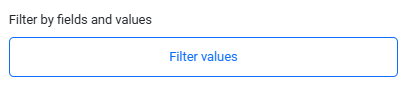
This functionality allows you to review data from specific components and create rules for filtering. The dropdown lists the components of the tool(s) selected in Select template. Without selecting a template, this feature cannot be used.
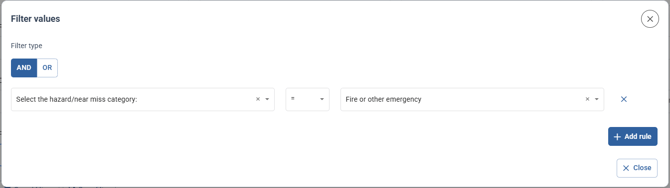
You can choose whether AND or OR logic applies:
- AND = All rules must be met in the same tool for the data to appear
- OR = Only one of the selected rules must be met for the data to appear
From All fields, you can select the question whose answers you want to review. If you do not select values, all values for that question are included.
Between fields and values, you can set a condition:
- = : Select a single value; filters for an exact match
- != : Excludes a specific value
- in : Select multiple values found in completed
- not in: Excludes selected values from results
Select field value allows you to review the content entered in forms or checklists. Other filters, such as Groups and Fields, also affect the available values. Multiple values can be selected depending on the chosen condition.
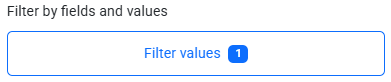
After closing the rule window, you must update analytics. If values are applied in the background, their count appears on the button.
Saving filters
Every selection affects the displayed data, so it is useful to save frequently used filters directly in Impact. Saved filters can also be shared with other users, but they will only see data according to their permissions.
Note: The Table view has its own method for saving and sharing filters.
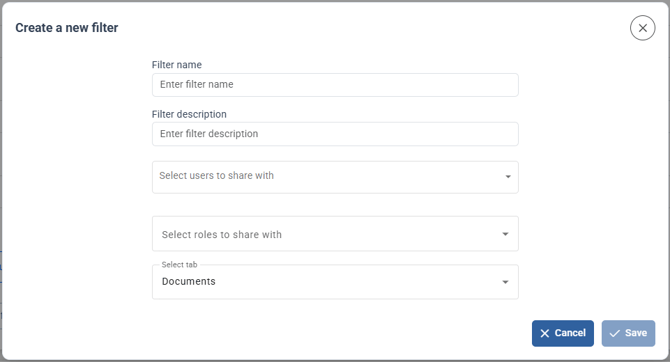
To save filters:
- Apply the desired filters
- Click Save filter
- Name the filter, add a description, select users and roles to share it with, and choose which tab it opens
- Click Save
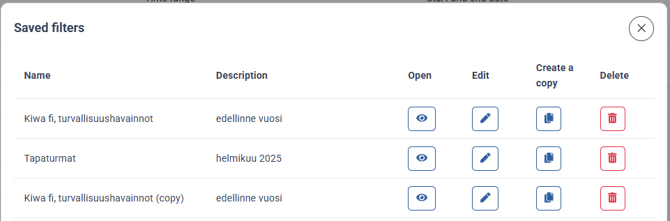
You can access your saved filters via the Saved filters button. Saved filters open in a new window, where you can open them using the eye icon, edit them, duplicate them, or delete them.